

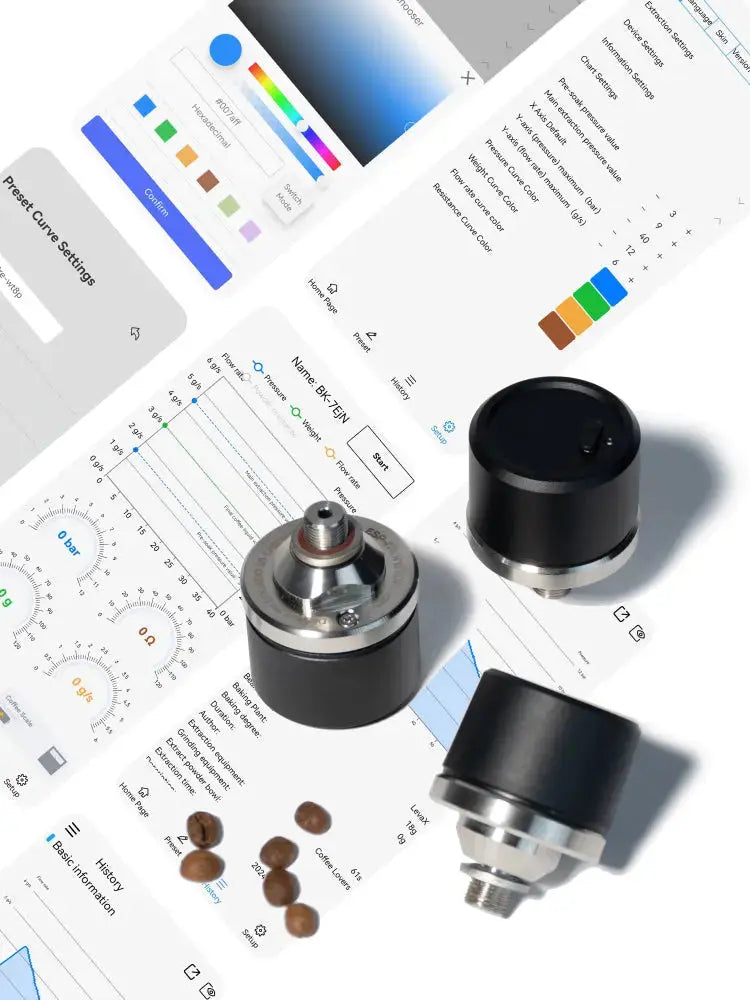
01 Product Overview
|
Product Name
|
BOOKOO Espresso Monitor Pressure Sensor
|
|
Weight
|
120g
|
|
Size
|
Length 50mm, height 40mm
|
|
Material
|
Heat-resistant plastic, food-grade 304 stainless steel pressure plug
|
|
Joint thread
|
G1/8
|
|
Adapter thread
|
M6
|
|
Pressure range
|
0-15bar
|
|
Working environment
|
0-80℃
|
|
Battery capacity
|
450mAh
|
|
Charging port
|
TYPE-C
|
|
Theoretical standby time
|
Up to 180 Days, Up to 30 Hours
|
|
Consecutive working hours
|
30 hours
|
|
Systems support
|
iOS & Android
|
|
How to download the app
|
Search for "BOOKOO N" on the App Store (iOS) or Google Play (Android) to download the app, or visit app.bookoocoffee.cn to download it directly.
|
02 Installation Guide
| Pressure Port | Adapter Required | Installation Steps |
| G1/8 | None | Remove the original pressure gauge. Screw the EM sensor directly into the port. Lightly tighten and check sealing. |
| M6 | Included (G1/8 → M6) | 1. Remove the original gauge and install the M6 adapter. 2. Screw the EM sensor into the adapter, lightly tighten, and check sealing. |
| Other (non-G1/8/M6) | Must purchase separately | 1. Remove the original gauge and install a compatible adapter. 2. Screw the EM sensor in and ensure proper sealing. |
Note:
-
The EM connector thread is G1/8 and includes a standard G1/8 to M6 adapter.
-
The EM is compatible with espresso machines with G1/8 or M6 pressure port threads. If your machine uses a different thread standard, please purchase the appropriate adapter to ensure compatibility. For more information, contact our customer service team via email at
support@bookoocoffee.comor on Discord: https://discord.gg/ebFWFAFmYn. -
For modifications or additional installations, consult a professional to ensure proper sealing of connections. The BOOKOO team is not responsible for any issues resulting from unauthorized modifications.
-
When connecting the EM to a group head operating above 100°C, an adapter must be used to reduce heat transfer and maintain the EM within its normal operating temperature range (0–80°C).
03 Quick Start Guide
3.1 Preparation for Use
3.1.1 BOOKOO N App Download
iOS Users
-
Open the App Store, search for “BOOKOO N”, and download “BOOKOO N”.
Android Users
-
Search for “BOOKOO” on Google Play and download “BOOKOO N”.
-
Download the Android APK from our official website (https://bookoocoffee.com/pages/app-download).
This manual only covers the usage of the new APP (BOOKOO N). If you are using the old version of the app, you may:
-
Download the latest version from the App Store or official website (recommended);
-
Visit https://bookoocoffee.com/blogs/blog/bookoo-espresso-monitor-pressure-sensor-product-manuals for guidance on connecting the EM to the old APP;
-
Contact the BOOKOO customer service team via email at
support@bookoocoffee.comOr on Discord: https://discord.gg/ebFWFAFmYn for the complete manual.
3.1.2 Bluetooth Connection
-
Permissions
-
When using the APP for the first time, please allow BOOKOO N to access Bluetooth in your device settings. Android users need to grant both device and location permissions.


Connection Method
- The default setting is manual connection. Tap [Add Device] on the home screen to access the device pairing page.


-
You can enable [Auto-connect to the EM] in [Basic Settings → Device Settings]. The EM will then automatically connect on the next use.

-
3.1.3 Device Customization
After connecting the device via Bluetooth, the APP will automatically navigate to the Device Customization page. Here you can adjust parameters such as Initial Pressure and Standby Time.

Notes:
Maximum Brew Time: The longest duration for an extraction record. When this time is reached, the system automatically stops recording to prevent excessively long extractions.
Initial Pressure: The pressure value at which monitoring automatically starts.
Standby Time: The maximum waiting time before the initial pressure is reached.
Auto-stop Time: The duration the pressure must remain at 0 bar before recording automatically stops. If set to 0 seconds, the extraction recording must be stopped manually.
3.1.4 Firmware Update
-
Go to [Settings → Version Settings → EM Firmware Version] to view the current EM firmware version. If an update is available, a red update notification will appear.
-
You can also tap “OTA Update” at the bottom of the EM device details page to get the latest version.


3.2 Extraction Process
3.2.1 Start/Stop Settings
-
Automatic Start/Stop ( Applies to espresso extraction only )
-
Monitoring starts automatically when the pressure reaches the Initial Pressure you set.
- Monitoring stops automatically when the pressure remains at 0 bar for the duration set in Auto-stop Time.

-
-
Manual Start/Stop
- Tap the Start/Stop button on the screen to begin or end extraction.
3.2.2 Chart Settings
Go to [Settings → Chart Settings] to adjust the chart’s maximum pressure value, color, and other display options.
 |

|
3.2.3 Curve Tracking
-
Curve Reference Selection In [Menu → Brew], select a classic or historical curve. Tap [+ Set as Reference] to set the curve as a reference for follow-along during extraction.
 |
 |
-
Full-Screen Tracking: Tap the full-screen icon to enter landscape tracking mode.
 |

|
3.3 Post-Extraction
3.3.1 Extraction Info Editing
-
After extraction ends (manually or automatically), the edit popup appears automatically.
-
You can choose [Edit Infomation] to modify immediately, or [Save] to edit later in [History Curve]. [Cancel] will discard this extraction record.
 |
 |
3.3.2 Historical Curve Management
-
In [Menu → Brew], select [History Curve] to view past records.
-
Tap a curve to enter edit mode, then tap the ✒️ icon at the top-right to modify information.
 |
 |
 |
3.3.3 Extraction Sharing
-
In [Menu → Brew], select [History Curve] to view records.
-
Tap the share icon to open the [Share Options] popup.
-
Choose the desired format to generate a visual poster or Excel file, which can be saved locally or shared on social media.

|
 |
04 Warranty Policy
Thank you for purchasing the BOOKOO EM Pressure Sensor. BOOKOO is committed to providing high-quality products and offers the following warranty policy for this product.
05 Warranty Policy
5.1 Warranty Period
-
BOOKOO provides a 1-year warranty from the date of purchase.
-
Registering an account on the BOOKOO official website (bookoocoffee.com) adds an additional 1-year extended warranty.
5.2 Scope of Warranty
-
This warranty covers device malfunctions caused by manufacturing defects or material issues.
5.3 Exclusions
The warranty does not cover failures caused by:
-
Accidental damage, misuse, abuse, or other user-induced issues.
-
Unauthorized disassembly, repair, or modification.
-
Damage caused by natural disasters, fire, water immersion, or other force majeure events.
For support, please contact the BOOKOO Customer Service Team and provide:
-
Proof of purchase
-
Purchase information
-
Description of the issue
BOOKOO will guide you through basic troubleshooting. If the issue cannot be resolved remotely, you may be requested to send the product to a designated service center for evaluation.
If the fault is confirmed to be not caused by user error, BOOKOO will repair or replace the product free of charge.
5.4 Important Statement
-
Repairs or replacements performed during the warranty period do not extend or reset the original warranty.
-
If the failure is caused by user error or the warranty period has expired, you may still contact BOOKOO for support. Assistance will be provided, but repair fees, shipping, and taxes may apply depending on the extent of the damage.
-
This warranty policy applies only to the BOOKOO EM Pressure Sensor. Specific terms may vary depending on national or regional regulations. For further information, please contact the BOOKOO Customer Service Team.
Share:
BOOKOO Themis Mini Coffee Scale User Manual
How to Choose the Right Espresso Monitor Pressure Sensor Kit for Your Espresso Machine